Paint 3D App | Features, Download & Creative Tools Guide
Have you ever wanted to try your hand at making 3D art without all the hassle? Paint 3D is a simple app from Microsoft that lets you do just that. It turns basic drawing into something exciting by adding depth and fun elements.
This tool mixes old-school painting with new 3D tricks, perfect for anyone who likes to create. You can start with a blank page and build up to full scenes. Many people use it for quick projects or to learn the basics of design.
Even if you’re not an expert, Paint 3D feels easy to pick up. It comes with ready-made items to help you get going fast. Now, let’s look at what it offers and how to make the most of it.
What is Paint 3D?
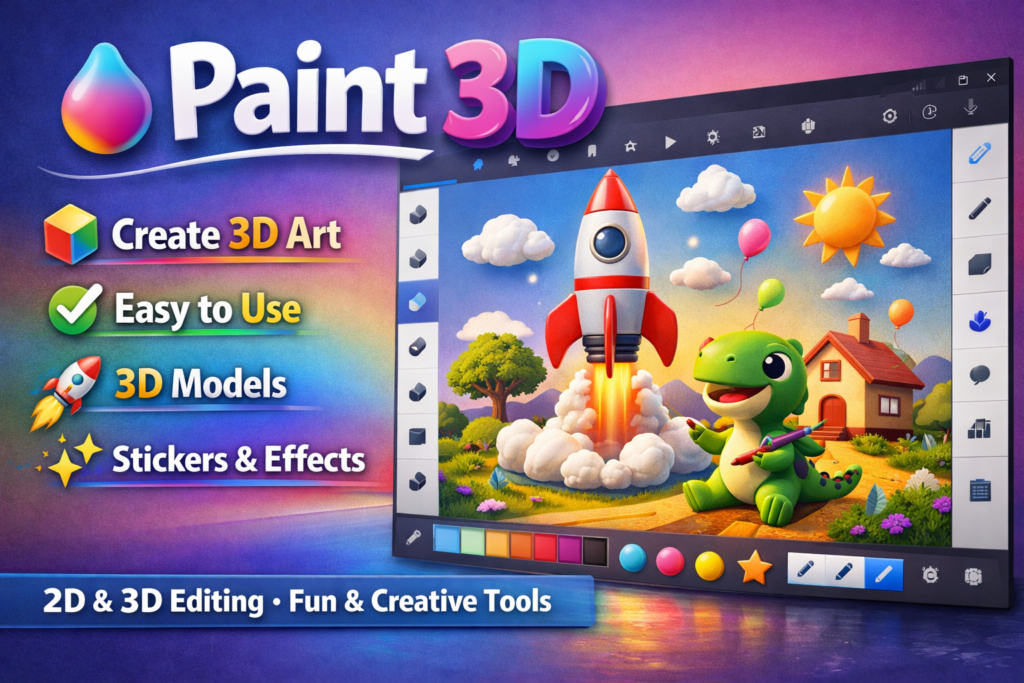
Paint 3D is a free program that helps you edit pictures in both flat and 3D styles. It builds on the classic Microsoft Paint but adds ways to work with shapes that pop out. Users can draw, add effects, and build models all in one place.
The app first showed up with Windows 10 to make 3D creation open to everyone. It aimed to let people make art that feels real and share it with others. Over time, it became a go-to for simple edits and fun experiments.
Today, in 2026, Paint 3D is no longer in the main store from Microsoft. They stopped updates back in 2024 because not enough folks used it. But if you have it or find a way to get it, it still runs fine on newer Windows setups.
Key Features of Paint 3D
Paint 3D packs a lot into a simple layout. You get tools for both 2D and 3D work, making it flexible. Let’s break down what stands out.
Drawing and Painting Options
The brush set includes things like markers, pens, and sprays. You can pick colors and sizes to fit your style. An eraser helps fix mistakes fast.
For freehand work, the pencil tool lets you sketch ideas quickly. Watercolor and oil effects add a real feel to your pieces. It’s like having a full art kit on your screen.
2D Shapes and Text
Add lines, curves, and basic forms with ease. Drag them around, change sizes, or turn them. This helps build up your design step by step.
Text comes in 2D or 3D formats. Choose fonts and add fills for extra pop. It’s great for labels or signs in your art.
3D Models and Doodles
Jump into 3D with ready models like animals or buildings. Edit them by pulling parts or adding colors. The doodle tool turns your lines into full shapes.
View your work from any angle to check how it looks. This feature makes sure everything fits together right. It’s fun to spin around and see your creation.
Stickers and Effects
Stickers wrap around objects for cool looks. Pick from built-in ones or make your own from pictures. Textures give surfaces a real touch, like wood or metal.
Effects change the whole scene with lights or filters. Magic select cuts out parts of images clean. Crop trims things down to what you need.
Canvas Controls
The main area adjusts for size and see-through levels. Turn it off if you want a free space. This setup keeps your focus on the art.
Creative Tools in Paint 3D
The tools in Paint 3D spark ideas for all kinds of projects. Start with basic brushes to lay down colors. Then layer on stickers for quick details.
Use the 3D library to grab models and tweak them. Add text that stands out in depth. Effects tie it all together with a pro touch.
For edits, magic select grabs sections smart. Crop and erase fine-tune your work. These help turn rough sketches into polished pieces.
Paint 3D Download Guide
Getting Paint 3D now takes a bit more effort since it’s not in the official shop anymore. Look for trusted places online that share the setup file. Make sure the source is safe to avoid any issues with your computer.
Once you find a good download spot for paint 3d download, click to save the file. Open it up and follow the steps on screen to install. It usually sets up quick without needing extra stuff.
If you had it before, check your old installs or accounts. Sometimes it stays there for you to put back on. This way, you can keep using it even after the changes.
System Needs for Paint 3D
Paint 3D works on Windows 10 and 11. You need at least 4 GB of memory for it to run smooth. Older systems like Windows 7 or 8 won’t support it at all.
A basic setup is enough for most tasks. If you have a touch screen or pen, it feels even better to use. Just ensure your device meets these basics before you try it.
How to Start with Paint 3D?
Open the app and pick a new project. Choose your tools from the side menu. Try drawing a simple shape to get the feel.
Build up by adding 3D items. Play with views to see from sides. Save often to keep your progress safe.
Share your art with friends or online groups. Remix others’ work for new twists. It’s a great way to learn and have fun.
Tips for Better Use
Keep projects simple at first to build skills. Mix 2D and 3D for unique results. Use undo if something goes wrong.
Try different brushes on scrap areas. Group items to move them together. This saves time on big designs.
Look for community shares to inspire you. Practice with effects to see what works best. Soon, you’ll make stuff that surprises you.
Other Apps Like Paint 3D
If Paint 3D isn’t for you, try Blender for more power. It’s free and handles complex 3D. Or GIMP for 2D edits with lots of options.
Classic Paint is still around and getting updates. It sticks to basics but works well. SketchUp offers easy 3D for plans and models.
Conclusion
Paint 3D opens up a world of creation for anyone with a Windows machine. From its range of tools to the easy download steps, it fits right into your routine. Even after the official end, it remains a solid choice for fun art.
Give it a shot and see what you can make. The features and creative options keep things fresh. You’ll find plenty of ways to express your ideas with Paint 3D.